
Reset password
A password reset is necessary if you have forgotten your password or if the application requires you to change it. Follow the step-by-step instructions below to create a new password.
Step-by-step instructions
-
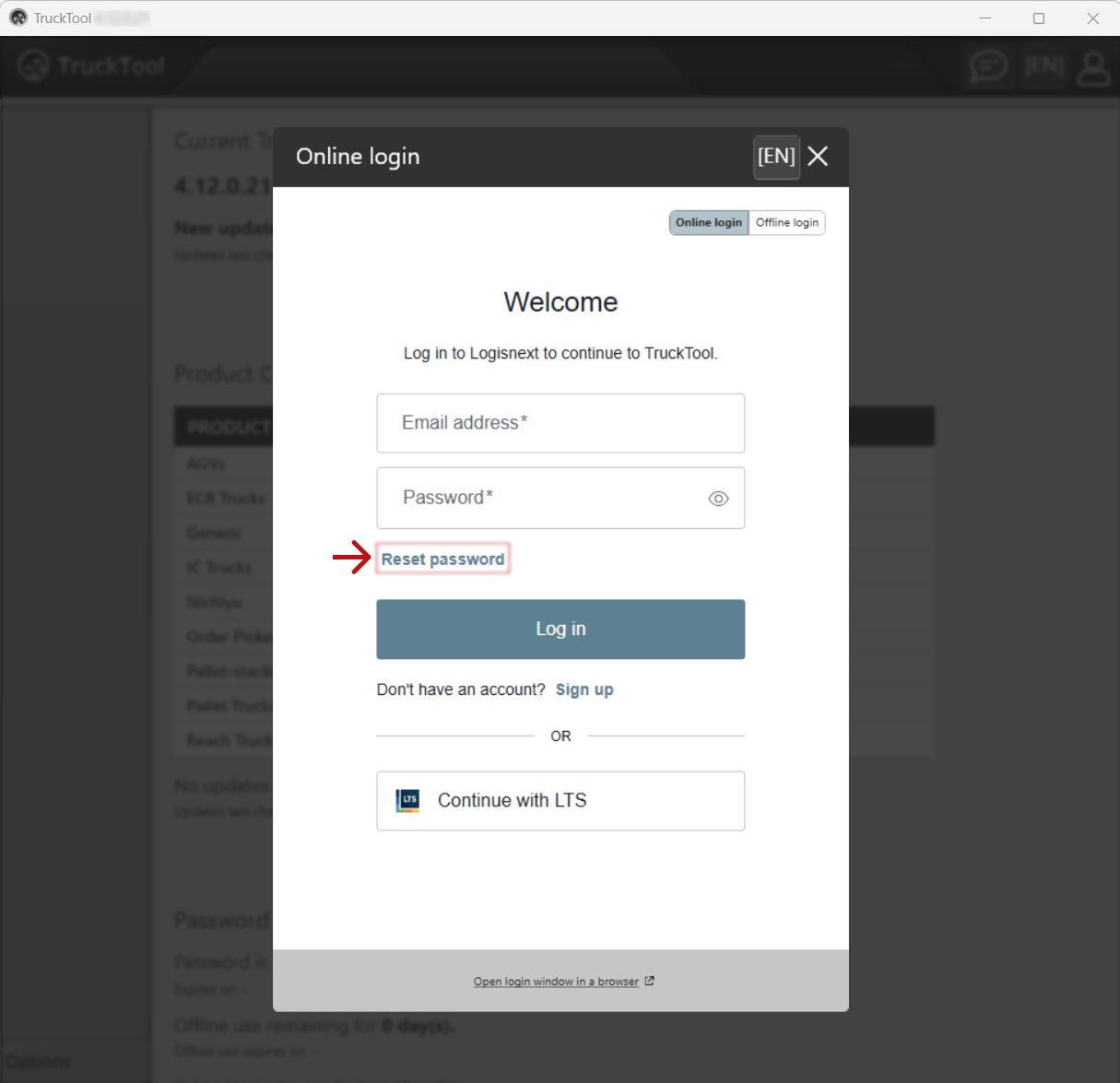
Start the password reset by opening the Login window. If you are still logged in to TruckTool, log out first to access the Login window.
-
Click the Reset password link highlighted in the picture below.
-
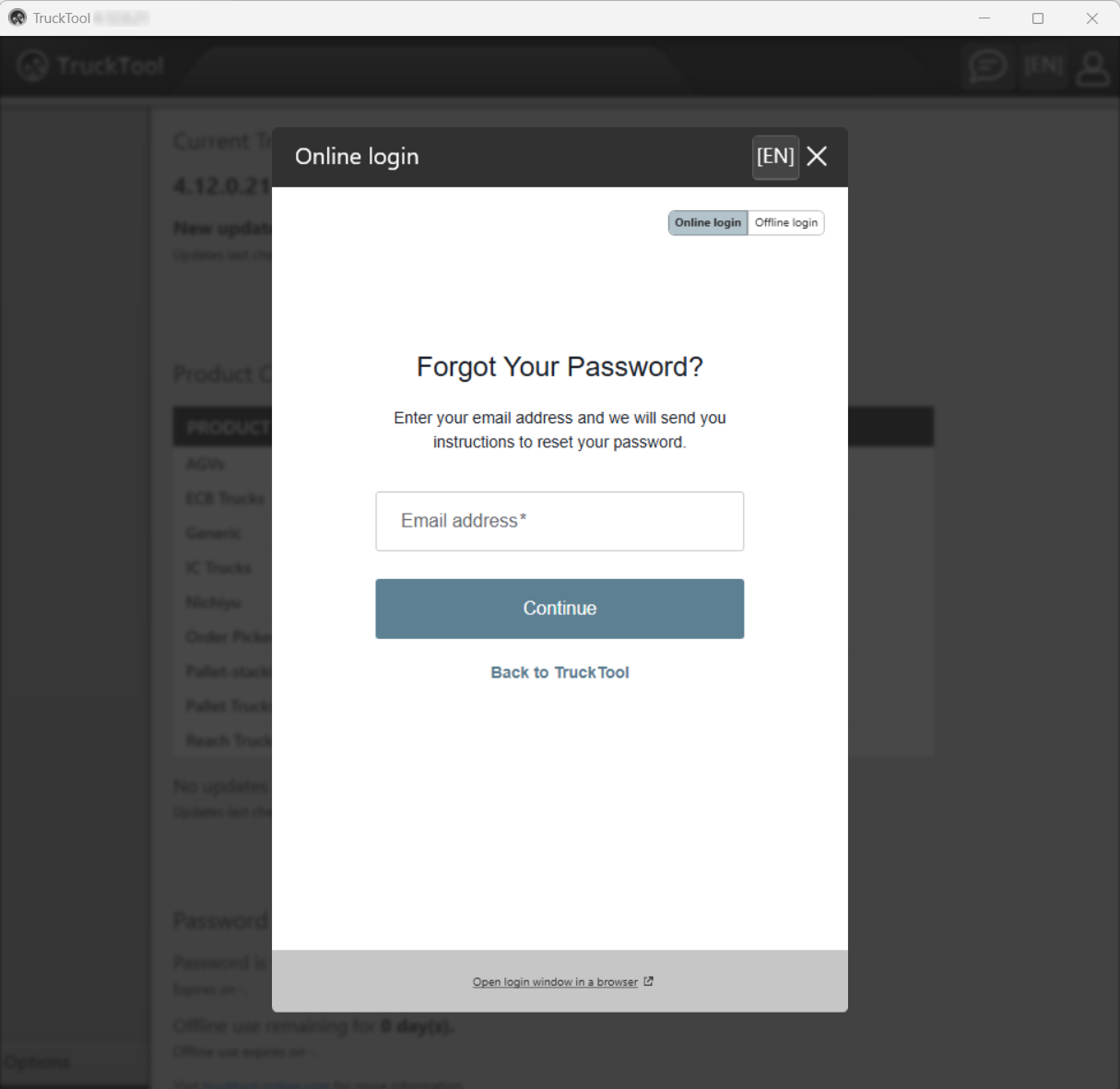
Enter the email address you use to log in to TruckTool. Confirm with clicking the Continue button.
-
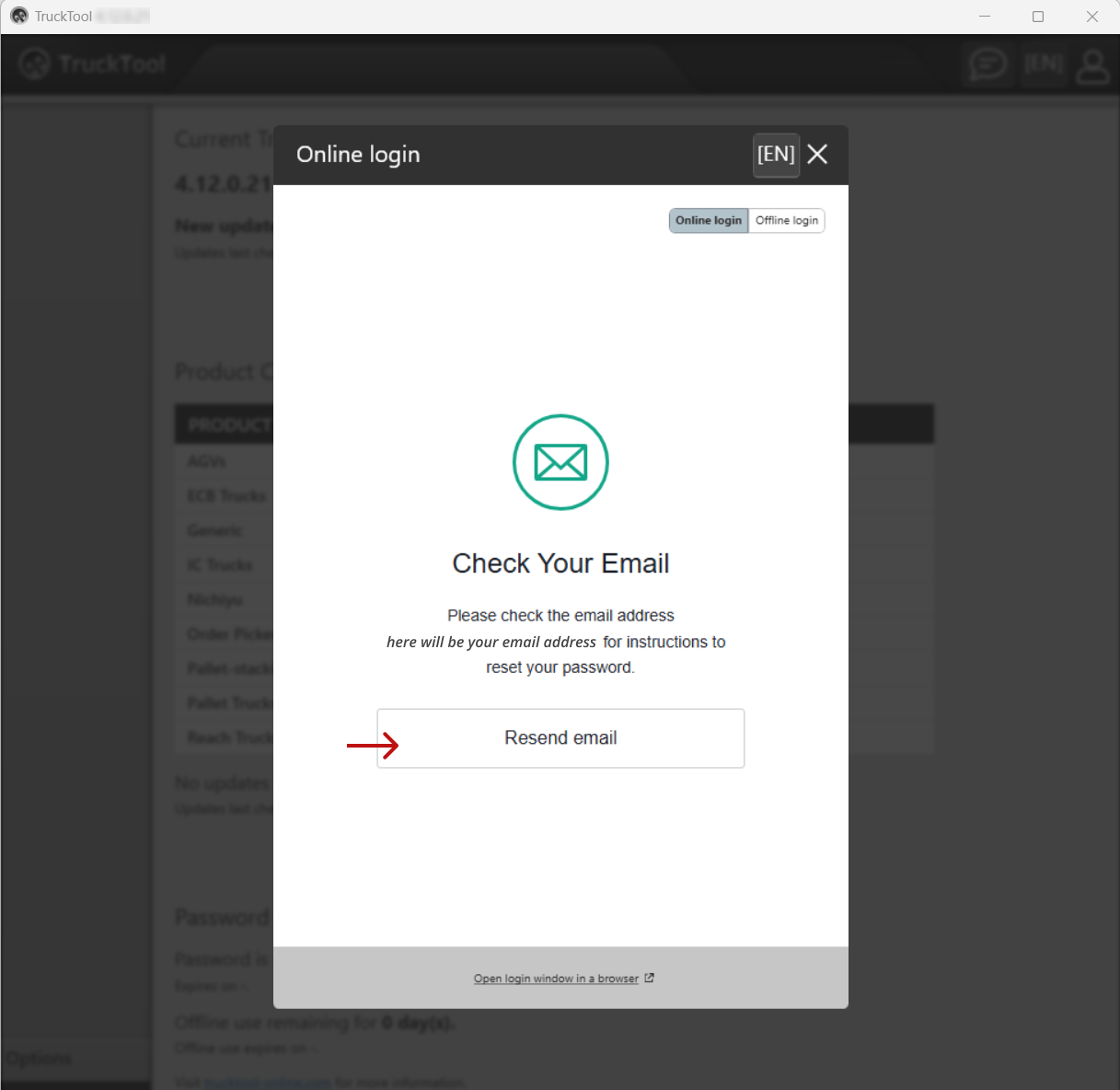
You will receive an email containing a link for resetting the password. Navigate to your email application and locate the email with title "Reset your password". In the email message you will find a button and/or a link: click either one of them and the password reset will open in a browser window.
Sometimes it will take a while to get the email message. If you don't get the email, and it is not located in the spam or junk folder, you can resend the message in TruckTool by clicking the Resend email button.
-
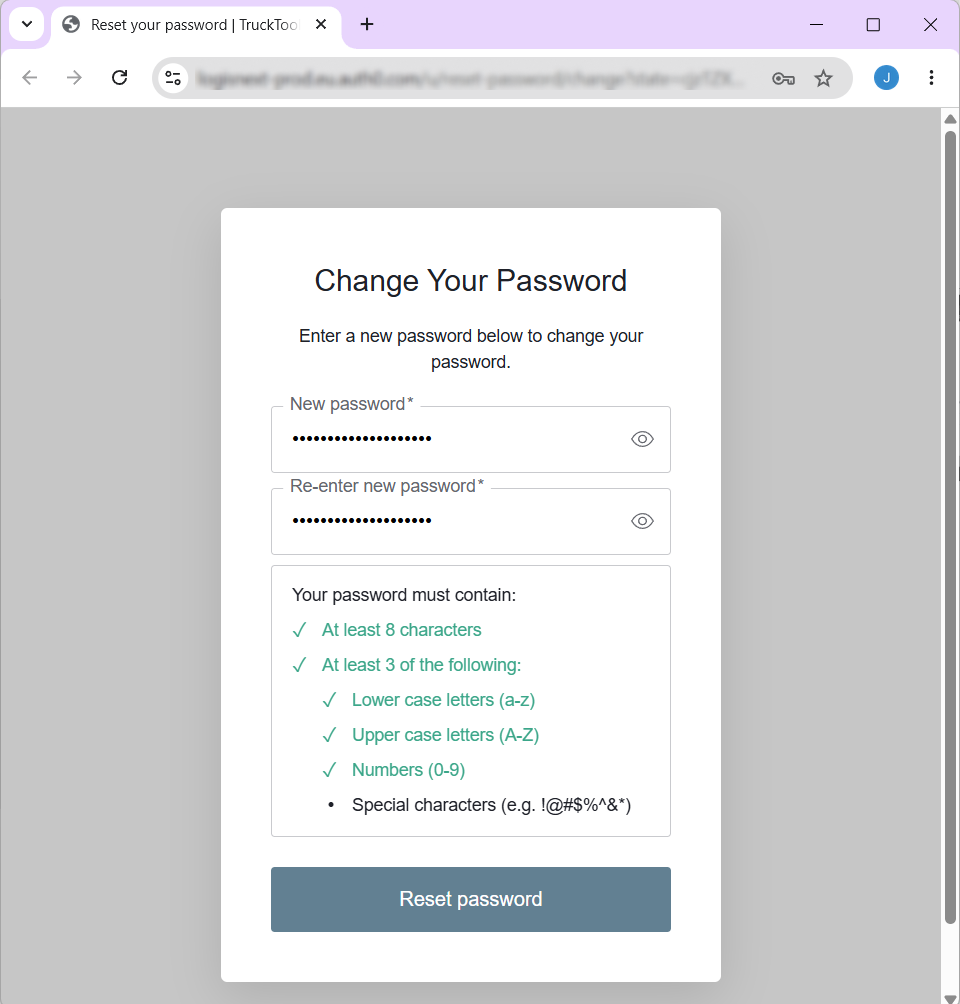
After you have clicked the password reset button or link in the email message, your browser will open. Type in a new password which fills the password requirements stated in the view and click the Reset password button.
-
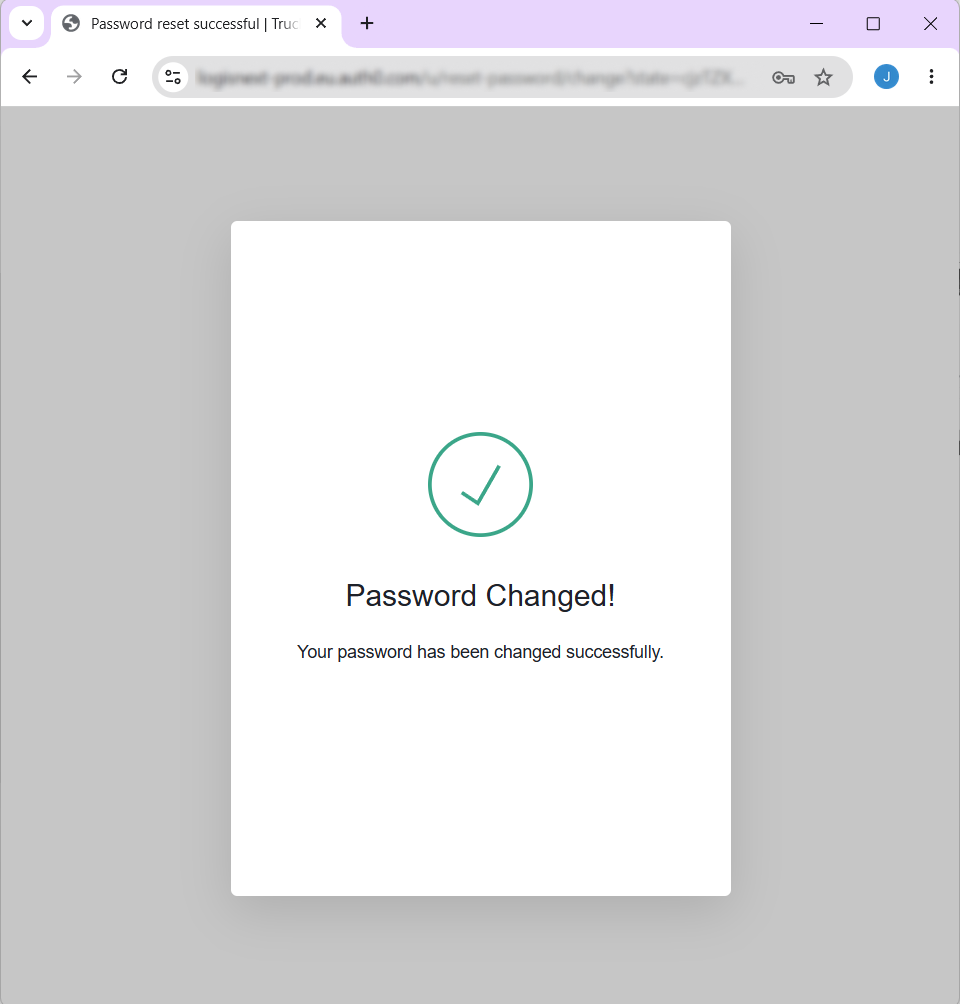
You have now succesfully changed your password and can return to TruckTool.
-
In TruckTool, reload the Login window by pressing Online login button highlighted in the picture below, or by closing the Login window and opening a new one from user icon in the upper right corner.
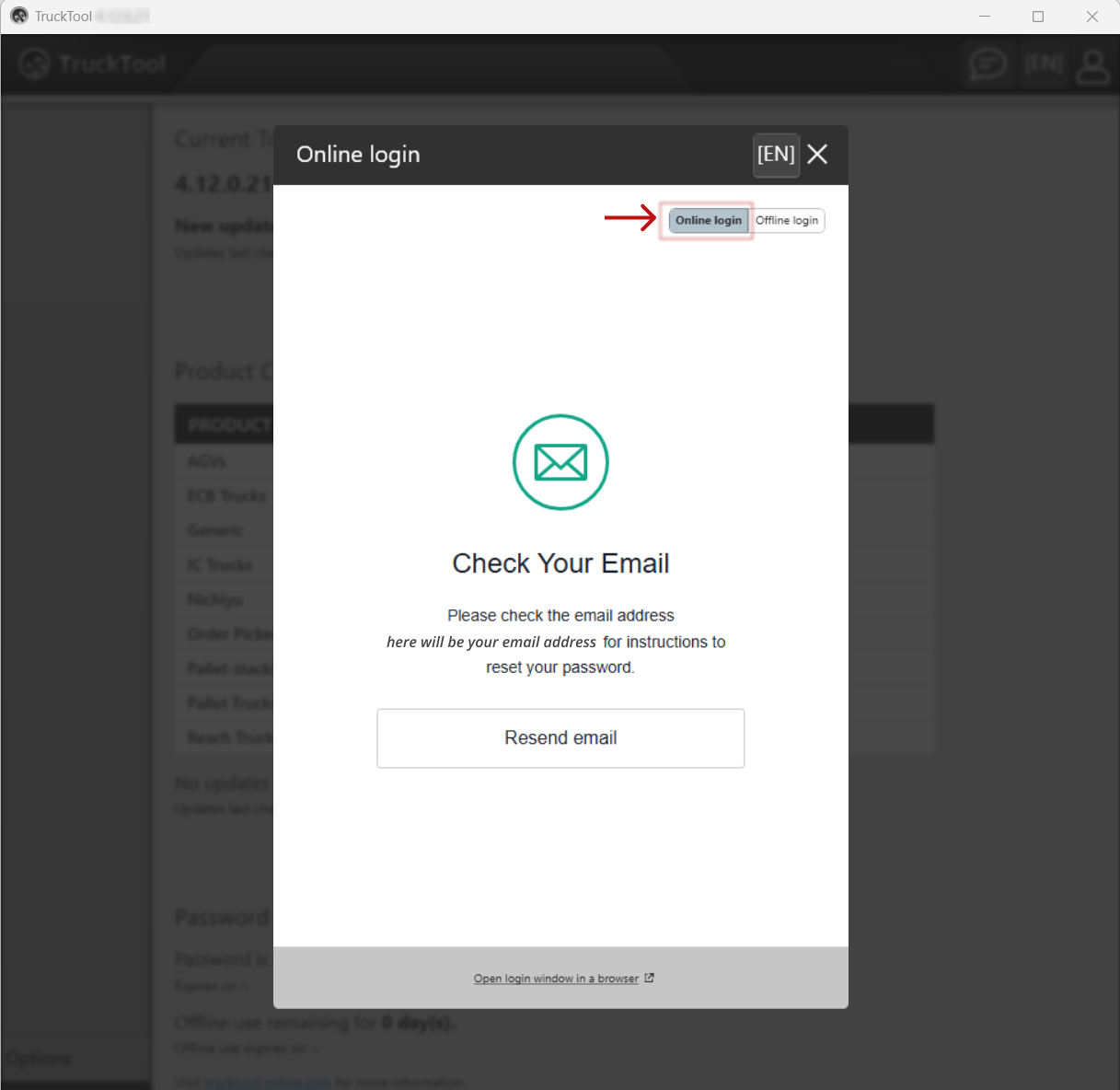
You can now use the new password to login to TruckTool.